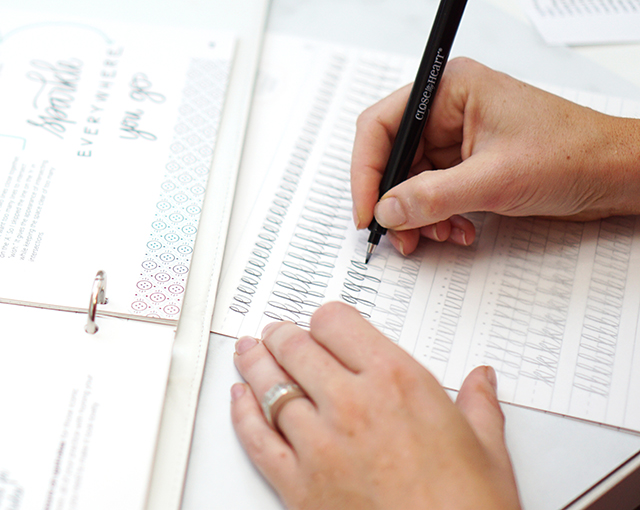
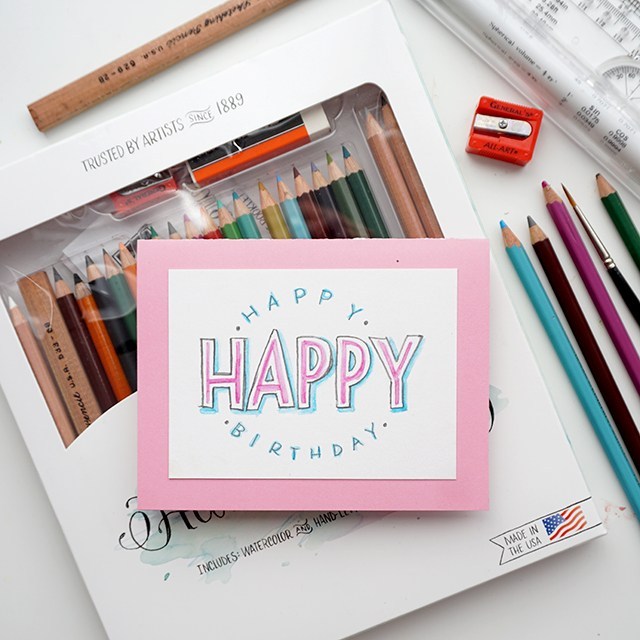
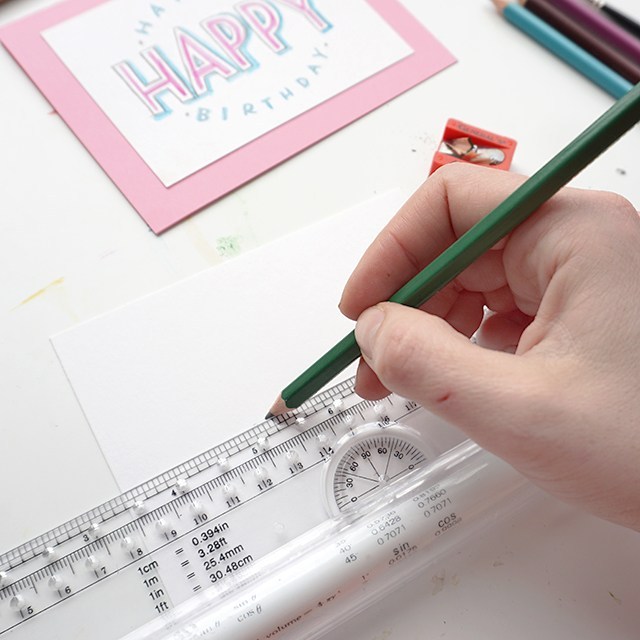
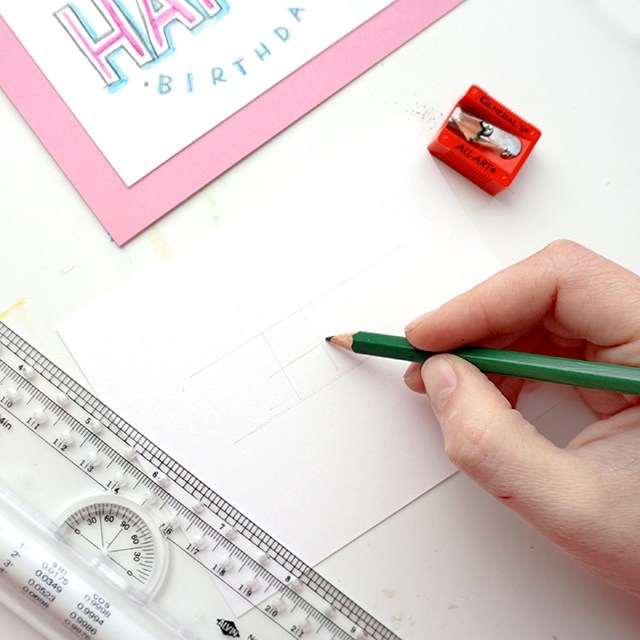
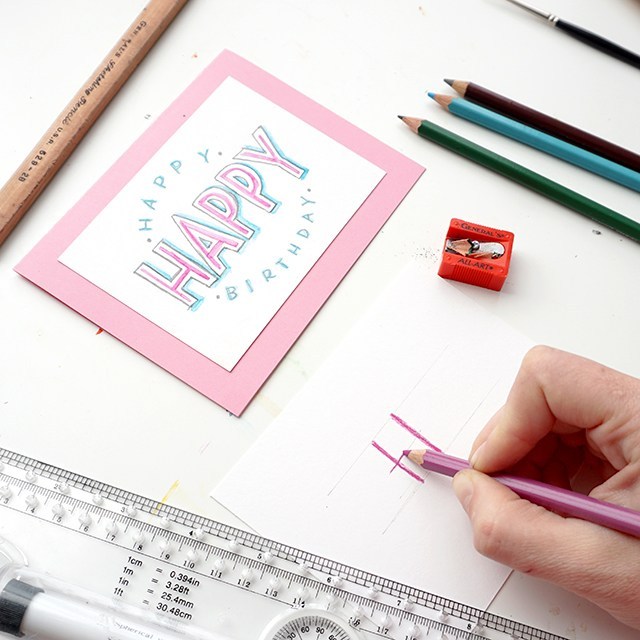
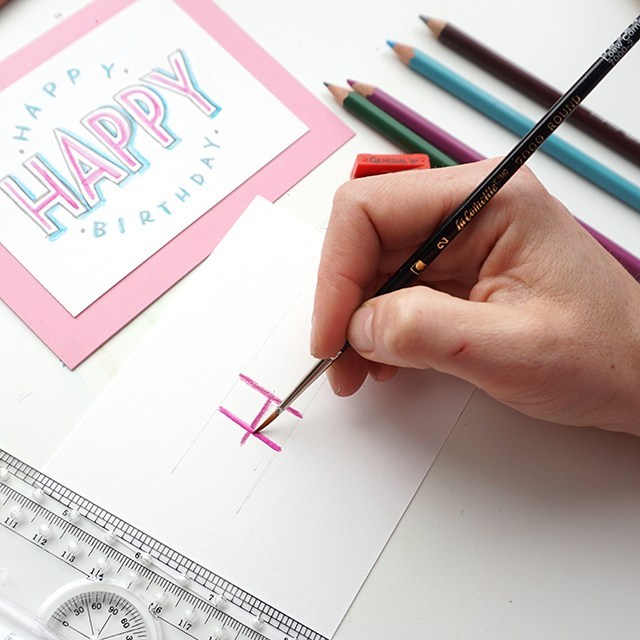
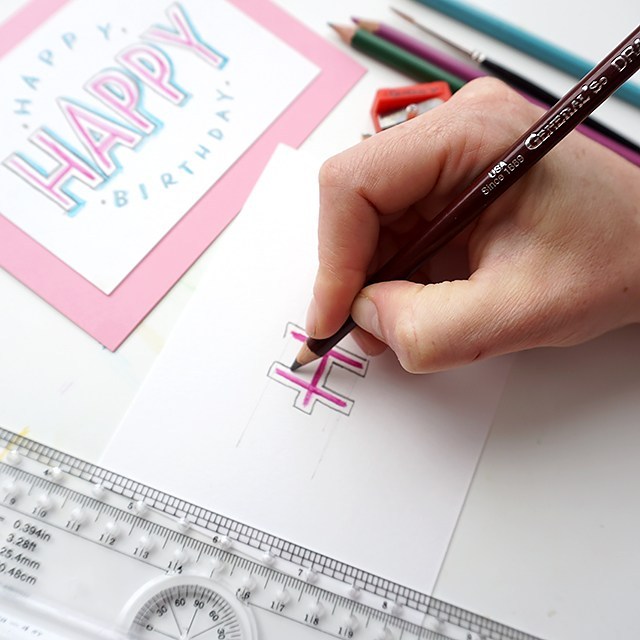
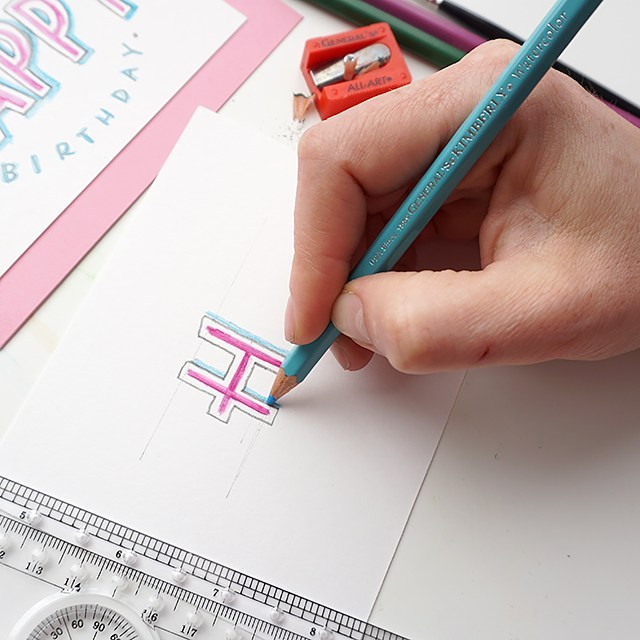
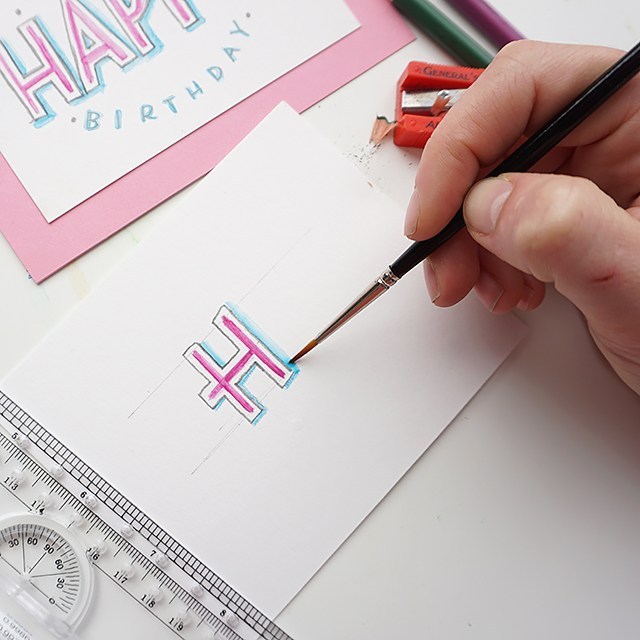
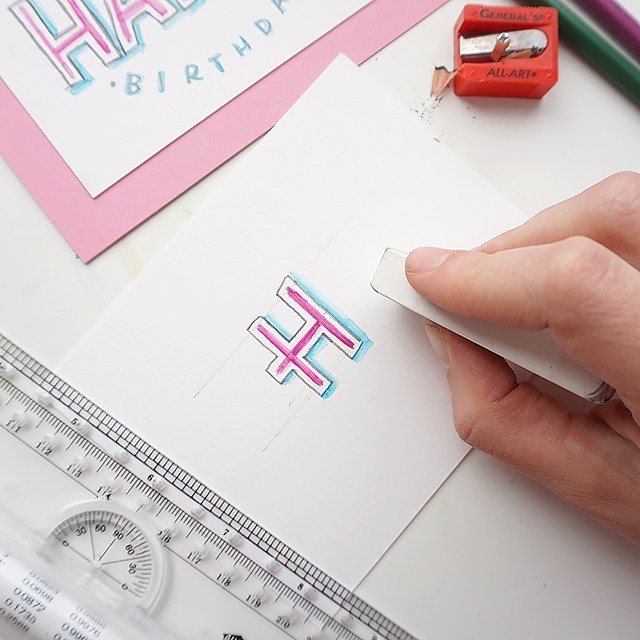
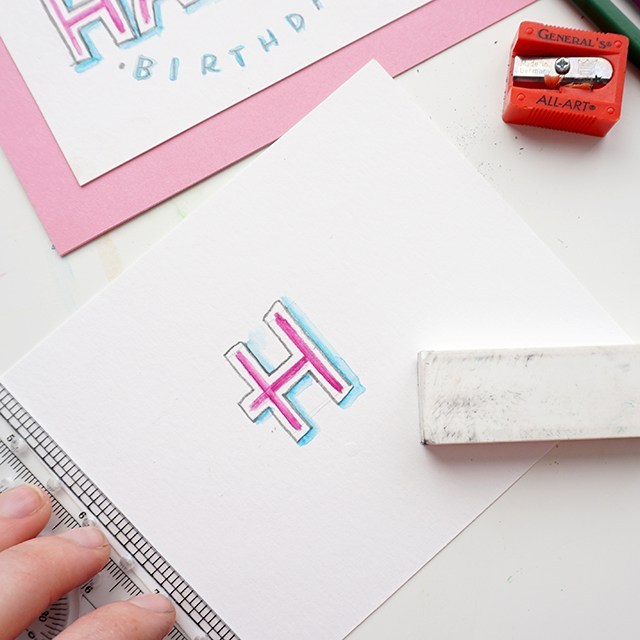
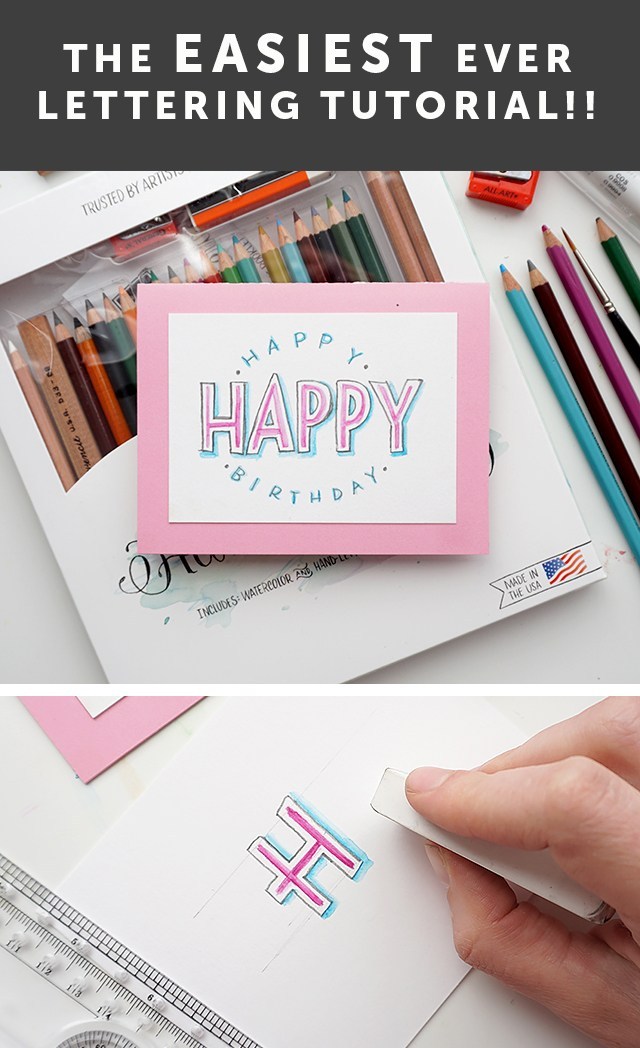
I teach calligraphy and lettering over at Calligraphy.org, and would absolutely love to teach you the lettering aspect of journaling. I have a very, very beginning fundamentals class for hand-lettering right here. The hand-lettering fundamentals will show you how to push beyond just stick capital letters and lowercase letters to add dimension to your work. I also teach a brush lettering class, it’s geared toward complete beginners and I personally walk you through manipulating the brush/marker to create beautiful work in your own style. Use code SUNDAYNOTES for 10% off through April 30, 2019
I’m so excited you’re here! Here’s a resource to the supplies I use. I used some affiliate links here. By purchasing through my affiliates your price isn’t changed, but you help support my art habit. ;) I’m linking to the sites I shop that carries each item at the lowest price.
MY JOURNALS:
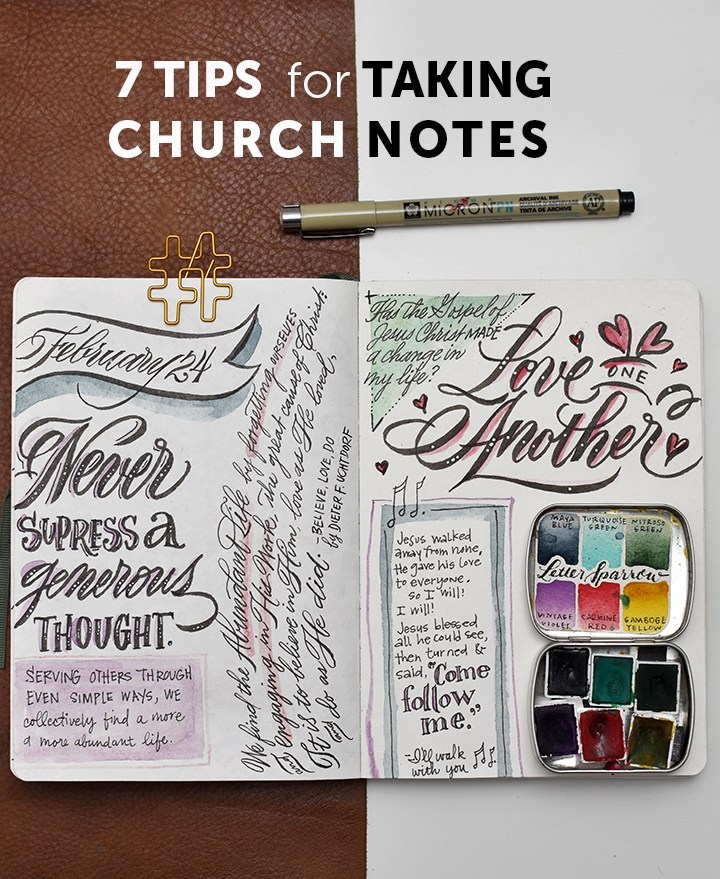
Hanji Notebook: I’m currently using this journal for my Sunday notes. So far it has handled watercolor well, and out of my pens, the Sakura & Pigma pens/markers work best. It’s 5×7 inches without gridlines or ruled lines. Erasing pencil lines is a little tricky here, but as long as I’m gentle, the paper fibers withstand erasing.
Hahnemüle Nostalgie Landscape Notebook: I busted this one out for my recent Yellowstone trip. We sketched and journaled our fun on the trip (Penelope and Junie got really excited about it!). It handled watercolor far better than I imagined. My tombow pens didn’t do so hot on this paper, but my Sakura pens did fabulous here. This paper withstands erasing like a champ. No budging or smudging. It’s 6×8 landscape, but you can find it in a lot of different sizes.
Golden Coil Notebooks: These notebooks are big. It’s a little less portable than the top two notebooks, BUT…. you can customize how you fill your pages. If you like blank, lined, listed, graph, dot grid, spreadsheet pages you can select them. And you can even do a mixture of all of those with up to 260 pages in each notebook. It’s a great value. I’ve found it works really well with all ink types. It does okay with some watercolor washes with little to no bleed-through. These notebooks are bound on a spiral, making it very easy to write on every page with a flat surface.
House that Lars Built Notebook: If you’re wanting the color to take care of itself and you just want to focus on form, this pretty notebook from HTLB and Abrams book is gorgeous, with different color background and white dot grid to keep your writing level. Printed paper is ideal for felt tip pens/markers and ball-point pens, but not fountain pens.
I have some dedicated watercolor journals that I’m waiting to bust out on my trip to Holland next month, so jury’s out on those for the moment. These are by no means all the journals that you can choose from, but the ones that I have and can recommend.
MY PENCIL CASE:
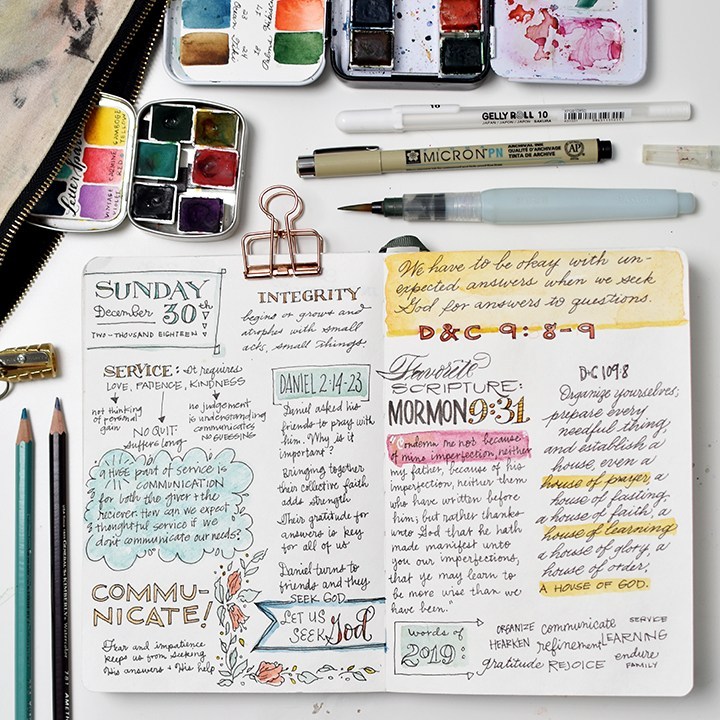
I may have a few too many writing instruments in my pencil case… it’s like my security blanket having all my favorite pens with me! I style my journal entries with the supplies I use, so if you ever have a question about something pictured, or how I did a certain letter, feel free to ask me on Instagram. I’m quite responsive on there. :)
Sakura Micron PN: This pen is waterproof & the kids can use this pen without damaging the nib!
Pigma Professional FB, MB & BB: Sometimes I need a different size brush pen to emphasize different things. This set includes the 3 sizes I would need most and best of all, this set is waterproof.
Pigma Calligrapher 3.0: This chisel nib may not be your jam if you’re not into calligraphy so much, but I really like how I can accentuate and bold words with this broad-edge pen. Also, it’s waterproof.
Mechanical Pencil: I don’t want to spend my time sharpening a pencil, so I opt for a mechanical pencil with an eraser here.
Watercolor Pencils: These are great for drafting out things/shapes that I want to watercolor or adding color in small areas that I want to watercolor without having to bust out my watercolor palette. It’s not crucial that these pencils are sharp, so I don’t sharpen them often, but I do have a pencil sharpener hooked to my zipper just in case I need a finer point.
Pocket Watercolors: While you don’t have to spring for handmade watercolors, having a tiny tin of the colors you like most is helpful. I have a bit of a rainbow of a palette here so I can mix just about any color here. I also like Prima and Sakura watercolors for travel.
Tombow Fude soft & hard: Is it redundant that I have these and the fine Pigma professional? Maybe? But sometimes I want the feel that these nibs give and I don’t need the waterproof aspect. These pens are not waterproof and sometimes bleeds on certain papers.
Gelly Roll White 10: I like the size 10, it gives you a very opaque white line. I like adding white dots on the downstrokes of my bigger marker work.
Sharpie Marker: because… sometimes you need to write something permanent on a plastic surface.
Waterbrush: I like to use a fine-point waterbrush for my sketches because I’m usually only ever doing small washes and I like having that control.
MY APPROACH:
It’s not always practical to take the kind of notes that I’ve been posting on Instagram. I’m a mom of 3 and sometimes listening is impossible when I’m wrangling a runaway kid (Felix, I’m looking at you). Since my youngest is 4, my ability to listen in longer uninterrupted chunks is opening up.
I remember when Junie was just born (my youngest), and feeling completely starved at church. I was there, but always missing out on the meat of the meeting. It was frustrating. I was spiritually hangry. If you’re feeling this way and thinking, Who the hell does this girl think she is, encouraging me to write notes at church? I know It’s not easy and it doesn’t work for everyone. I recognize that I’m in a new stage in life without itty bitty babies so my hands are freed up to write notes.
That said, here are some tips that will help you get in the flow of things; whether you have kids or not.
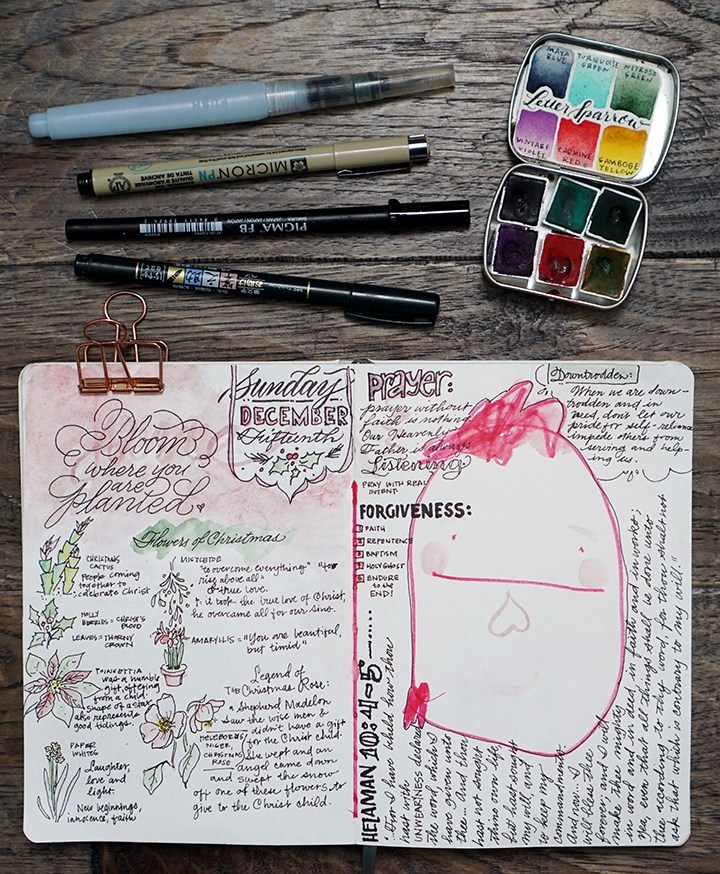
- If you have kids (big or small), try to bring a pen/pencil/marker/crayon or two for them. And maybe a notebook that they can pillage. If you’re lacking for paper, let them draw with you. It only makes those layouts all the more precious. This does a few things: it teaches them to respect your desire to write notes and teaches that they can do it too. I’m still learning how to incorporate my kids into journaling without being a demanding art director, but including them has been tender.
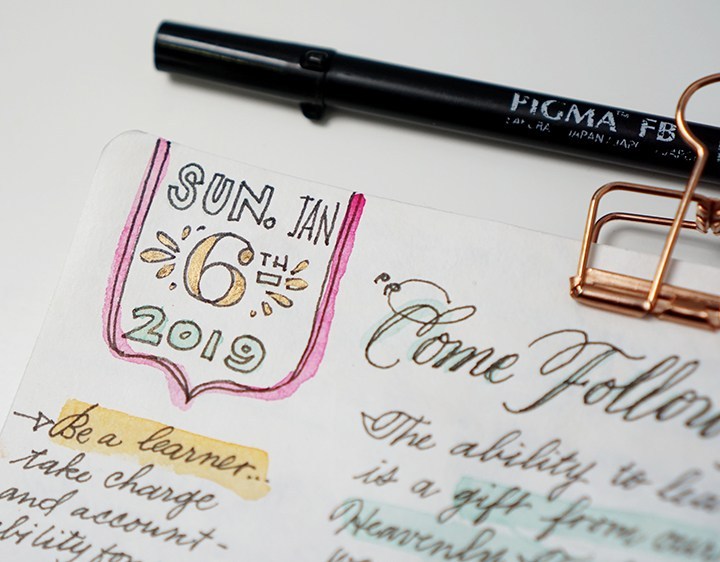
- Use singing time and announcements as down time to catch up or mock up your layout. I use that time to write out the date at the beginning of services. This warms me up and gives me some time to get in the mood. Sometimes my dates turn out fancy. Sometimes they’re meh. DON’T GET HUNG UP ON GETTING IT PERFECT.
- Listen for big-picture themes. Not all talks/sermons are great or easy to follow. Listen for the overarching theme, write your own impressions on the theme and perhaps a scripture/quote/hymn/verse that calls attention to the theme. If the speaker references a hymn or scripture, jot it in pencil in the margins. During downtime or post-church, you can write that in the blank spaces. If you’re listening to General Conference (a semi-annual conference of amazing sermons from leaders of the The Church of Jesus Christ of Latter-Day Saints), listen for these two things: an invitation and a promise. It keeps note taking from getting overwhelming.
- Use columns and shapes to separate ideas, quotes, speakers or soundbites. I generally separate each page into two columns. They’re not always equally divided. But breaking down the space into small chunks helps.
- Add a pop of color to emphasize a thought or idea.
- Use this time to play around with handwriting, lettering or calligraphic styles. This is playful time. Just explore. Sometimes your explorations will work and sometimes they won’t. It doesn’t matter if they don’t work out. You tried and you listened. That’s all that really matters.
- Use decorative designs or illustrations to separate thoughts, quotes, ideas, themes. See below for that printable ideas sheet.
Did you draw up some church notes? Let me know!! I’d love to see how they turned out.
CLICK HERE TO DOWNLOAD THE IDEAS SHEET
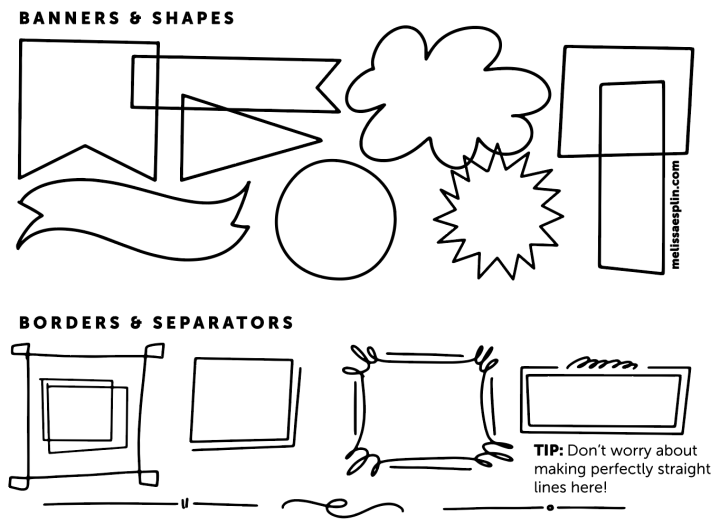
This freebie is available for personal use only. I hope you enjoyed this post and it gets you working on your own journals. Tag me on instagram @melissapher if you end up using these tips. Looking forward to seeing your progress!